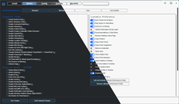
streamline installs, debloat with tweaks, troubleshoot with config, and fix Windows update.
Windows Utility in 2026 — Everything That’s Changed
This utility is a compilation of Windows tasks I perform on each Windows system I use. It is meant to streamline installs, debloat with tweaks, troubleshoot with config, and fix Windows updates. I am extremely picky about any contributions to keep this project clean and efficient.

Winutil must be run in Admin mode because it performs system-wide tweaks. To achieve this, run PowerShell as an administrator. Here are a few ways to do it:
Start menu Method:
- Right-click on the Start menu.
- Choose “Windows PowerShell (Admin)” (for Windows 10) or “Terminal (Admin)” (for Windows 11).
Search and Launch Method:
- Press the Windows key.
- Type “PowerShell” or “Terminal” (for Windows 11).
- Press
Ctrl + Shift + EnterOr right-click and choose “Run as administrator” to launch it with administrator privileges.
irm "https://christitus.com/win" | iexirm "https://christitus.com/windev" | iexAfter six years, 200+ contributors, and over 30 million runs, the Windows Utility continues to be one of the most widely used Windows optimization tools available. Here’s a full breakdown of what it does, what’s new, and what’s coming next.
How to Run It
The easiest way to launch the utility is directly from your terminal:
- Right-click the Start Menu and open Terminal (Admin)
- Run the following command:
irm christitus.com/win | iex
Prefer an offline option? Head over to cttstore.com to download the executable. The online version always pulls the latest release, while the offline executable is ideal for systems without internet access or for those who want a static version.
The Four Tabs
1. Install
The Install tab lets you select and install multiple programs in one go. It uses Winget (and optionally Chocolatey) under the hood to handle everything automatically — no manual downloading or clicking through installers.
Key improvements:
- Collapsible categories make it easier to browse by type (browsers, utilities, media, etc.)
- Get Installed button queries your current system and lists everything already installed
- Uninstalling is just as easy — uncheck what you don’t want and hit Uninstall
The goal has always been a curated, concise list of the most commonly used programs — not an overwhelming app store. After years of iteration, the balance feels right.
2. Tweaks
The Tweaks tab is where most of the optimization magic happens. There are four sections:
- Standard Tweaks — Recommended for all users. Safe, reversible, and based on sensible Windows 7-era defaults.
- Advanced Tweaks — For power users only. Includes things like blocking Razer Synapse from ever installing (useful if you’re stuck with Razer hardware).
⚠️ Don’t just check everything. Advanced tweaks exist for specific use cases — they’re labeled “Advanced” and “Caution” for a reason.
Running Tweaks
When you click Run Tweaks, the utility:
- Creates a System Restore Point automatically
- Applies all selected tweaks in the background
- Reduces running processes to around 70–80, cutting out AI bloat and unnecessary Microsoft services
Reverting Changes
Made a mistake? Two ways to undo:
- Undo Selected Tweaks — Reverts only what you selected
- System Restore — Roll back to the restore point created before tweaks were applied
3. Config
The Config tab is geared toward more experienced users, but there’s plenty here that’s useful for anyone who’s been on their machine for a few years.
Highlights:
- Old-school Control Panel — The Windows 7 control panel is still superior for many tasks
- Printer Panel — More options than the modern Settings app
- Legacy Sound Settings — Far better than Microsoft’s current audio management
- Themed PowerShell — Install a custom shell theme directly from here
- .NET Frameworks — Enable or install specific versions as needed
- NFS Setup — For those running NFS instead of SMB network drives
Repair Tools
| Tool | What It Does |
|---|---|
| Reset Network | Runs netsh int ip reset and netsh winsock reset — restores network stack to defaults |
| Reset Windows Update | Re-registers DLLs, restarts update services |
| System Corruption Scan | Runs sfc /scannow and DISM /RestoreHealth |
| Winget Repair | Restores Winget health if installs/uninstalls start failing |
Note on corruption scans: These take a long time and rarely fix things. They’re included as a last resort — a “Hail Mary” option. In most cases, a backup and clean reinstall is the better call.
Windows troubleshooting guide
4. Updates
For Windows Pro users, this tab is essential. The recommended configuration:
- Delay Feature Updates by 1 year — Avoid being a beta tester for major OS changes
- Delay Security Updates by 4 days — Updates release on Tuesday; this installs them Saturday, giving Microsoft time to pull any bad patches before they hit your machine
For Home users, or when Microsoft ships a particularly bad update (like the NVMe drive issue from last year), there’s an option to disable updates altogether.
⚠️ If you disable updates, re-enable them once the issue is patched. Leaving Windows unpatched indefinitely — even with antivirus installed — is not a safe strategy. A Mac or Linux switch is a better long-term solution than ignoring updates forever.
A Default Updates button resets everything back to Windows defaults.
What Happened to MicroWin?
MicroWin — the tab that let you create a stripped-down Windows ISO — has been removed from the main utility and forked into its own separate project.
Why?
A few reasons:
- PowerShell is slow for ISO creation. Using async C# with .NET would be significantly faster and more capable.
- New users were misusing it — reinstalling Windows on top of Windows, causing all kinds of problems.
- Feature creep. Keeping the utility lean and focused is a priority. A 30,000-line PowerShell script isn’t the goal.
Alternatives for Creating a Custom Windows ISO
If you want a minimal or customized Windows install, here are the recommended tools:
- MicroWin (Forked) — The new standalone version, faster and built in C#
- Tiny11 Builder — By NTDEV (IntiDev), who has been creating Windows ISOs for 20+ years. Uses official Microsoft media.
- NTLite — A veteran tool dating back to Windows XP. Highly configurable ISO modification.
What’s Coming Next
An offline .NET application built in F# is in active development and will eventually replace the current offline executable.
Key advantages over the PowerShell-based version:
- Faster tweak application — Directly interfaces with Windows APIs, no PowerShell overhead
- Shared codebase with WinUtil — Tweaks and settings sync automatically as the main utility is updated
- Same functionality, better performance
The target is to have this ready within the next month or two.
File Size: 10 KB, Version: 2026
Release Date: 2026
Command Run on PowerShell[Admin]: irm christitus.com/win | iex